Polar
First, make sure you’ve defined your payment processor in src/payment/paymentProcessor.ts, as described in the important first steps.
Next, you’ll need to create a Polar account in the sandbox mode. You can do that here.
Sandbox and Production Mode
Polar features two separate environments:
They are fully isolated from each other, which means that you need to create seperate organizations for each of them. They also feature independent products, sales, access tokens, etc.
For local development and testing, you’ll want to use Polar’s sandbox mode.
To enable sandbox mode, make sure that POLAR_SANDBOX_MODE is set to true in your .env.server file:
POLAR_SANDBOX_MODE=trueWhen you’re ready to deploy your app, we’ll remind you to set this to false.
Polar Organization Access Token
Once you’ve created your account, you’ll need to get your organization access token. You can do that by:
- Navigating to the
Developerssection under theSettings > Generalpage. - Click on the
New Tokenbutton to create a new token. - Give your token a name (e.g., “Open SaaS Development”).
- Select an expiration date.
No expirationis fine for sandbox mode, but discouraged for production mode. - Select the following scopes:
checkouts:writecustomer_sessions:writecustomers:readcustomers:writeorders:read
- Copy the generated token and add it to your
.env.serverfile:.env.server POLAR_ORGANIZATION_ACCESS_TOKEN=polar_oat_...
Creating Products
To create Polar products, in your Polar dashboard:
- Navigate to
Prodcuts > Cataloguepage. - Click on the
+ New Productbutton to create a new product. - Fill in the product details.
- For subscription products, select
Recurring subscriptionpricing. - For one-time payment products, select
One-time purchasepricing.
- For subscription products, select
- Click
Create Product. - Tap the
⠇icon next to your product and selectCopy Product ID. - Add the
Product IDto your.env.serverfile. Open SaaS by default expects three products, two subscriptions and one one-time purchase plan:.env.server PAYMENTS_HOBBY_SUBSCRIPTION_PLAN_ID=<your-hobby-product-id>PAYMENTS_PRO_SUBSCRIPTION_PLAN_ID=<your-pro-product-id>PAYMENTS_CREDITS_10_PLAN_ID=<your-credits-product-id>
Using Polar Webhook in Local Development
Exposing your Webhook Endpoint to the Internet
Polar notifies your Wasp app about customer and payment events through a webhook. However, to make it available to Polar during development, you need to expose your locally running Wasp server (started with wasp start) to the internet.
You can do that by running ngrok on port 3001 (Wasp server runs on port 3001 by default). ngrok will then generate a public URL that we can provide to Polar:
- First, make sure you have installed
ngrok. - Once
ngrokis installed and your Wasp app is running, run:Terminal window ngrok http 3001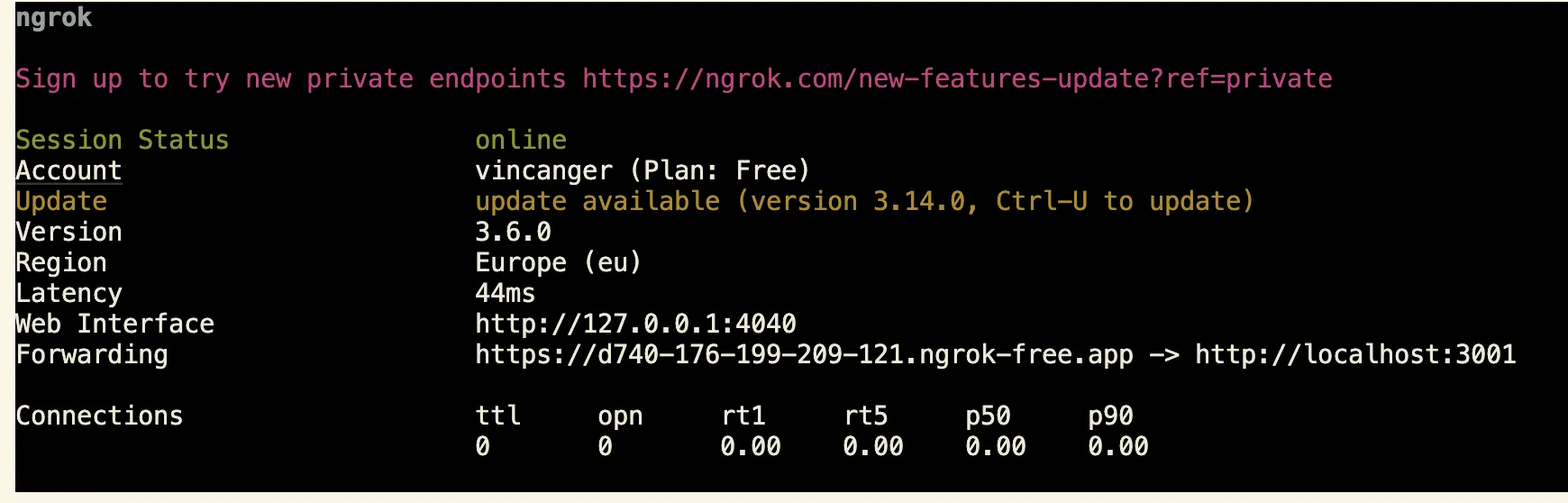
ngrokwill display a forwarding address. Copy this address and append/payments-webhookto it. It should look something like this:Callback URL https://89e5-2003-c7-153c-72a5-f837.ngrok-free.app/payments-webhook
Creating your Polar Webhook
Next, configure the webhook in your Polar dashboard:
- Navigate to
Settings > Webhookspage. - Click
Add Endpointbutton. - In the URL field, paste your
ngrokforwarding address with/payments-webhookappended (for example:https://abc123.ngrok-free.app/payments-webhook). - Set the
Formatto"Raw". - Select the following events to listen for:
order.paidsubscription.updated
- Click
Save. - Copy the generated webhook secret and add it to your
.env.serverfile:.env.server POLAR_WEBHOOK_SECRET=polar_whs_...
Testing Payments in Local Development
Before testing payments, make sure that you created and set all the required env variables in .env.server (POLAR_ORGANIZATION_ACCESS_TOKEN, <NAME>_PLAN_ID and POLAR_WEBHOOK_SECRET ) and that your ngrok tunnel is running.
You can then test the payment flow:
- Click a
Buybutton for any product on the homepage. - You should be redirected to Polar’s checkout page.
- Fill in the checkout form with test payment information.
- Complete the payment.
- You should be redirected back to the checkout success page.
To verify everything executed correctly you can:
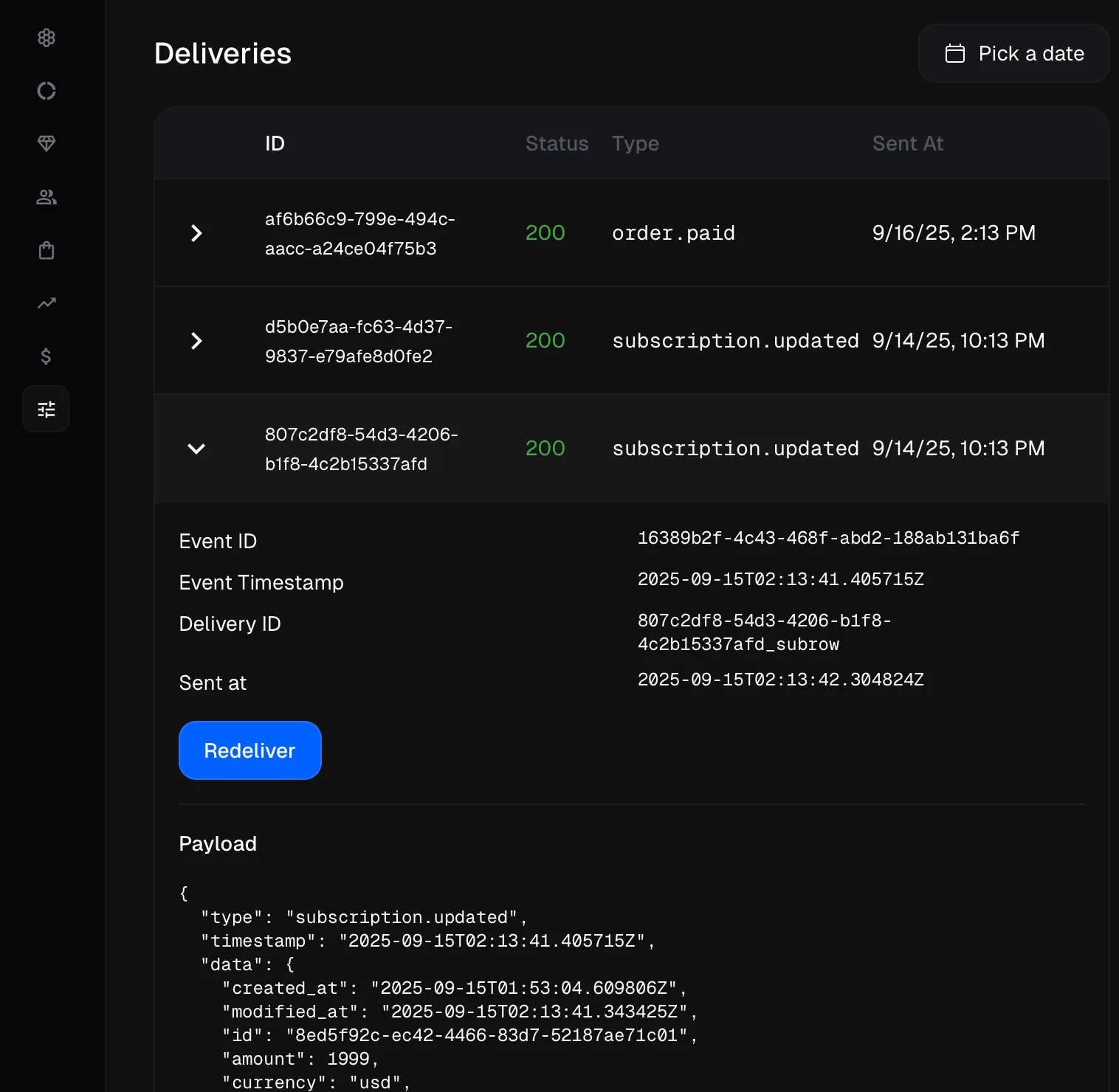
- Check Polar webhook event logs:
- Navigate to
Settings > Webhookspage - Click the
Detailsbutton of your previously created webhook. - Confirm all of the events have been successful:
- Navigate to
- Inspect your database’s
Usertable:- Run Wasp DB studio:
Terminal window wasp db studio - Navigate to
localhost:5555and check theUsertable. - Confirm the
subscriptionStatusisactivefor the user who made the purchase.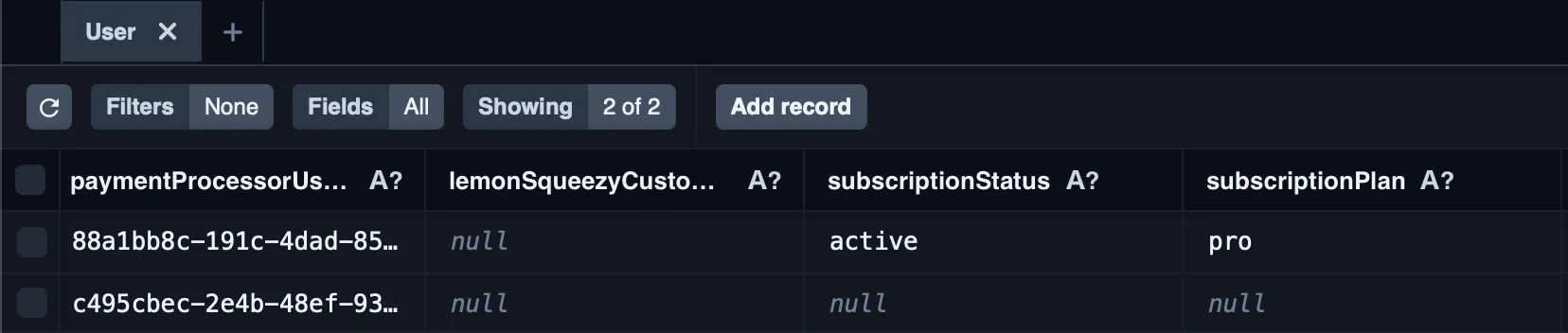
- Run Wasp DB studio: